⚡
On and ready
Pick a route and tap — no complex settings.
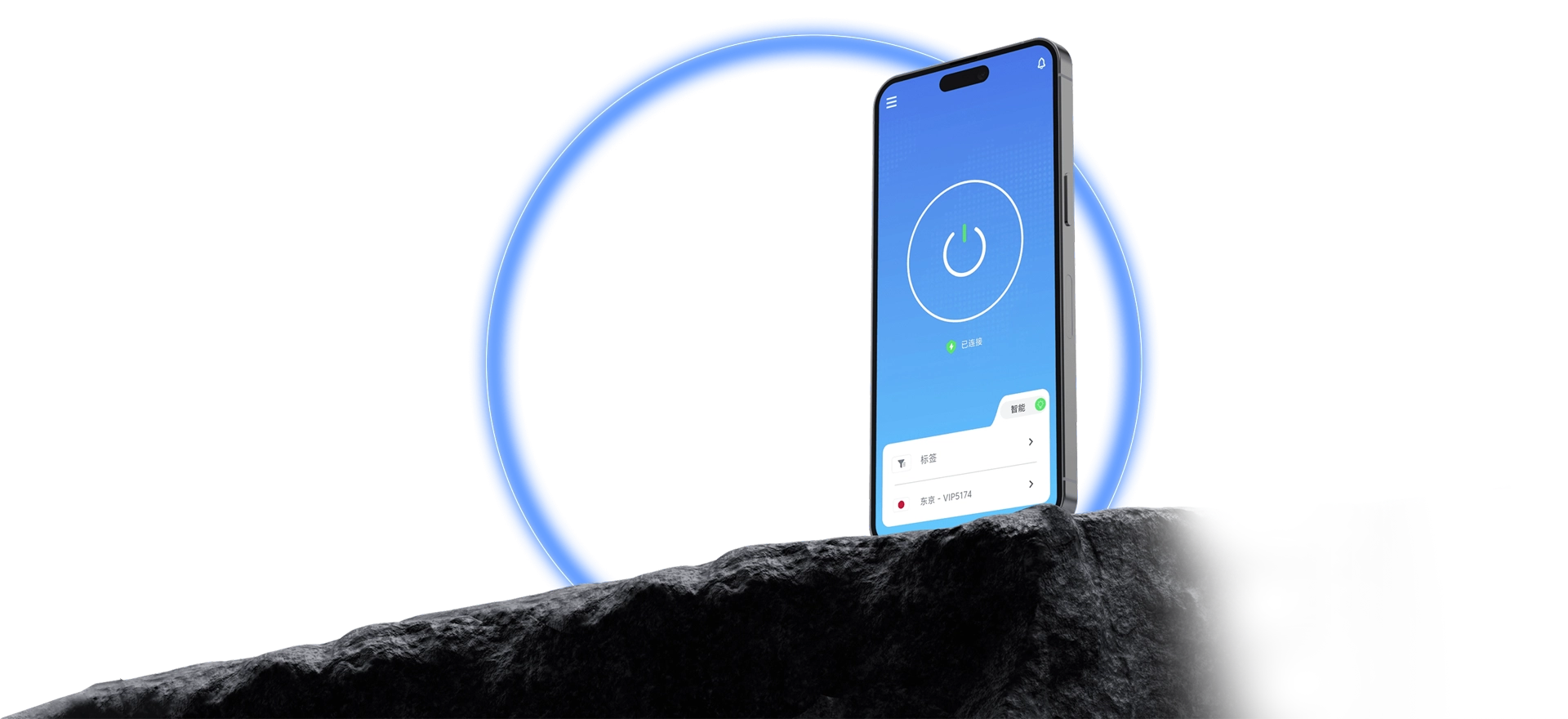
Run QuickQ, pick a route, turn on boost. Once you see “Connected”, open your film, live stream or game and enjoy fewer stalls from the very start.
Fix the network only after it stalls and you've often missed the key moment or lost the round. QuickQ keeps it direct: turn on boost in the software, check the status, then open your film or game. The boost switch and route list sit in the same spot on every system, so a new device is instantly familiar. Real speed still depends on home broadband, Wi-Fi signal and the target site, so the homepage adds a monthly upkeep list, a before-and-after habits chart, busy hours, first-launch issues, self-tests and a route log.
Built around daily use, nothing extra.
Pick a route and tap — no complex settings.
Routes listed by area for quick changes.
Connecting, connected and disconnected always visible.
Computer, phone and tablet share a login.
Play a moment before watching properly.
Tutorial and FAQ open in one click.
Choose a system for install notes, or download directly.
Get the build for your system.
Log in and pick a route.
When Connected shows, try a moment first.
| Scenario | Beforehand | If it stalls |
|---|---|---|
| Series nights | Have other home devices pause big downloads | Lower picture quality one notch |
| Live sport | Sit near the router on 5GHz | Refresh, or disconnect and change route |
| Multiplayer | Disable launcher auto-updates | Change after this match |
| Video meetings | Turn on early, test mic and camera | Check local network, then ask tech support |
We never promise “never stalls” — we explain what affects speed.
All three plans are on the subscription page for comparison.
Local network first, route second — no wasted effort.
The longer you subscribe, the less per month.
¥49 per month
Around ¥24.9 / month
Around ¥20.8 / month
Minimum requirements and installer formats.
| System | Minimum | Installer |
|---|---|---|
| Windows | Windows 10 64-bit | EXE |
| macOS | macOS 11 | DMG |
| Android | Android 8.0 | APK |
| iOS / iPadOS | Per download page | Follow on-page steps |
| Linux | Ubuntu 20.04 / Debian 11 | DEB |
Based on an ordinary commuter's routine.
Turn on boost over mobile data for news and audio.
Turn it on at startup and check key sites and work apps.
Evenings are busy — pause home downloads before streaming.
Watch latency before the match; consider switching after.
We don't sell personal information or push ads.
All prices are on the subscription page.
We tell you plainly what affects speed.
Tutorial and FAQ grow with each release.
Home, on the go and public places each need care.
| Condition | Character | Hint |
|---|---|---|
| Home broadband | Usually stable, shared by many | Ask family to pause heavy use first |
| Mobile data | Varies with signal | Turn on where signal is good; avoid lifts and basements |
| Public Wi-Fi | Unstable when crowded | Avoid rush times, switch to data if needed |
| Workplace network | May restrict access | If it fails, ask the network admin |
Just match yourself to one.
Monthly ¥49 — decide after.
Yearly ¥299, around ¥24.9 a month.
Two-year ¥499, around ¥20.8 a month — best value.
Know them early and save trouble.
| Misunderstanding | Reality |
|---|---|
| Every site speeds up once boosted | Speed still depends on the site, home broadband and device. |
| Changing routes often helps | Each change interrupts; check local network first. |
| High latency means a poor route | Wi-Fi interference, updates and busy servers raise latency. |
| Pricier plans have more features | All three plans share features; only length and monthly spend differ. |
Healthy devices make for steady boosts.
A restart after long uptime steadies things.
Get updates from the QuickQ download page.
Disable unneeded startup programs.
Overheating slows devices, especially in games.
What you can tweak and what needs patience.
| Link | Sign | Response |
|---|---|---|
| Home broadband | Slows with the whole family online | Stagger downloads, prioritise the active device |
| Wi-Fi signal | Weakens through walls | Move closer or use a cable |
| Route load | Busy in evenings | Move to a quieter route elsewhere |
| Target site | The site itself is busy | Retry later or lower quality |
| Device performance | Old or hot hardware stutters | Close background apps and cool it |
One small goal a day, fluent in a week.
Install QuickQ on your most-used device and boost once.
Test your usual route by day and by night.
Sign in on phone or tablet with the same account.
Practise “disconnect, then change route”.
Fix a small stall using the FAQ.
Pick a plan length on the subscription page by usage.
Arranging several devices at once.
| Setup | Purpose | Advice |
|---|---|---|
| Phone + laptop | Commute and work | Same account; turn on whichever you're using |
| Desktop + tablet | Gaming and shows | No HD on the tablet during matches |
| Family phones | Everyday fun | Check simultaneous logins on the plans page |
| Mac + iPhone | Creating and messaging | Test routes on the Mac, then use the phone |
Beyond speed, safety matters as much.
Shared accounts trigger unusual-login checks.
Get the software only from this site.
Sign out after using someone else's PC.
Patches bring peace of mind.
Read the hint and the next step is clear.
| Status | Meaning | Next step |
|---|---|---|
| Connecting | Joining the chosen route | Wait a few seconds; don't keep tapping |
| Connected | Route ready to use | Open content and give it a try |
| Disconnected | Boost is off | Turn it on again when needed |
| Connection failed | Couldn't join this time | Check local network, then change route |
Useful for estimating a busy home (general reference values).
| Use | Reference | Note |
|---|---|---|
| SD video | About 3 Mbps | Mobile data is fine |
| 1080p HD | About 5–8 Mbps | Leave room for group viewing |
| 4K video | About 25 Mbps | Cable or 5GHz advised |
| Online games | 1–3 Mbps; latency matters more | Stability beats bandwidth |
| Video meetings | About 2–4 Mbps | Upload bandwidth matters too |
Everyone online without stepping on toes.
Separate streaming and gaming times.
Pause downloads while the TV plays.
Minors use it with a parent.
Follow the plans page on simultaneous devices.
Know what's in an update before installing.
| Type | Contents | Advice |
|---|---|---|
| Feature improvement | New or refined features | Update when convenient |
| System adaptation | Supports new OS versions | Update soon after an OS upgrade |
| Bug fixes | Resolves crashes and freezes | Update first if affected |
| Route adjustments | Refreshes the route list | Re-pick a route after updating |
Two minutes before leaving home Wi-Fi.
Read the site in order, from install to confident.
A few steps fewer, a lot smoother.
Right-click and pin for one-click launch.
Leave QuickQ in the Dock.
Put the icon up front.
Pull down and search QuickQ.
Match the region to what you want to reach.
| Your need | How to pick | Note |
|---|---|---|
| Films from a region | A route near the content source | Low latency, fast loading |
| Playing with friends | A route near the game server | Check latency numbers first |
| Everyday browsing | The recommended route | No frequent changes needed |
| Evening peak | A quieter backup route | Log day and night separately |
Words you'll meet in the software and FAQ.
One minute to confirm it's working.
Pages should load without long blanks.
Watch 30 seconds for spinning or quality drops.
Look at the lobby number; compare routes if it swings.
Record a few days like this to find your best route.
| Time | Route region | Impression | Remark |
|---|---|---|---|
| Weekday daytime | Recommended route | Pages and meetings smooth | Make default |
| Weekday evening | Backup route A | HD occasionally buffers | Drop quality a notch |
| Weekend afternoon | Backup route B | Steady latency | Good for teams |
| Late night | Recommended route | Smooth overall | No change |
Congestion varies — plan viewing and downloads around it (general pattern, for reference).
| Hours | Busyness | Advice |
|---|---|---|
| 7–9 am | Moderate | Commute reading; SD is plenty |
| 12–2 pm | Moderate | Lunch short videos; avoid big downloads |
| 7–11 pm | Busiest | Turn on early; pick a quieter route if needed |
| 12–6 am | Quietest | Ideal for large downloads and updates |
What newcomers hit most, and the usual fix.
Check email and password, including case and spaces.
Disconnect, confirm pages open normally, then try another route.
Allow installs from this source in system settings.
In System Settings → Privacy & Security, choose “Open Anyway”.
Five minutes a month keeps the boost experience at its best.
Many users say it's not just the network that changes — habits do too.
| Moment | Before | Now |
|---|---|---|
| Starting a video | Press play, deal with stalls later | Turn on boost, confirm Connected, then play |
| Starting a match | Check the network only after dropping | Check latency first, switch routes after the match |
| Hitting a stall | Refresh and switch repeatedly | Work through the FAQ step by step |
| Family internet | Everyone fights for bandwidth | Stagger peak use, TV first |
Yes, those are common uses. Whether a site opens and runs smoothly also depends on the site, account, device, home broadband and route.
If downloads are paused and signal is good but it's still slow, disconnect and try another.
Evenings are peak time, so broadband and routes are busier. Test at different times.
Pause background downloads and cloud sync, check Wi-Fi and refresh; if it persists, disconnect and change route.
Install, sign in, pick a route, turn on boost — feel the change in minutes.